
In addition to creating a new Cloud Archive via the 360iQ web platform, you can initiate a new Cloud Archive request on the go via the mobile app.
Log in to the application with your username and password. You should see either the Dashboard or the Home screen, depending on your user settings. In the bottom right corner of the page, tap the More (six dots) icon.

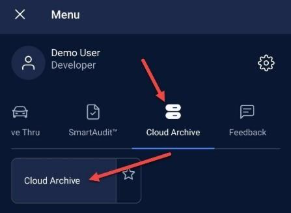
Hold your finger down on the row of icons and swipe to the left until you see Cloud Archive. Tap it. Tap Cloud Archive again.
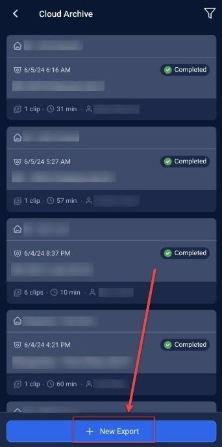
At the bottom of the screen, tap + New Export.
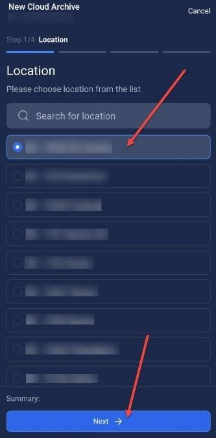
Choose your desired Location. Tap Next.
Select your preferred cameras from which to export the video. Tap Next.

Choose your time range (Start and End). Tap Next.

Fill out the Request Details, including Name and Description (optional). Toggle the Make request private option on/off according to your preferences, then tap Export.
Note: If you are making a private request, no one else can access or view it.

Your new request and its processing status will appear at the top of the list.

Note: When downloading your export, you only have the option for an MP4 video file.
For additional information or questions please contact DTiQ Support at support@dtiq.com or your Customer Experience Team at csr@dtiq.com.