
DTiQ’s Custom Report option allows you to save your filtered reports as easily accessible tiles.
Content
In this guide, you will learn:
How to Create a Custom Report
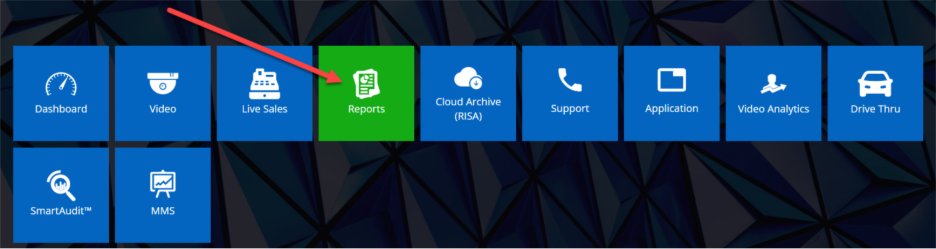
To create a Custom Report, go to any existing report (e.g. Sales Activity) from the Reports tile.
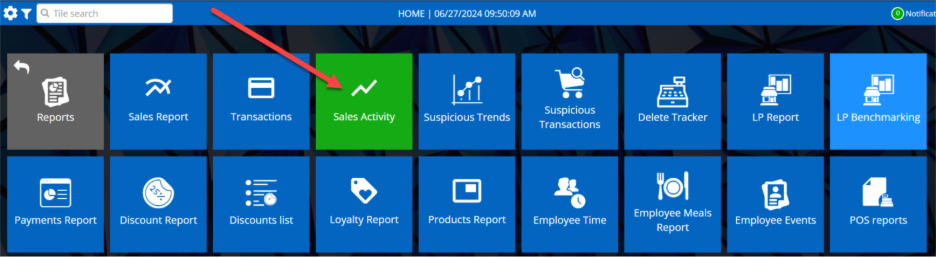
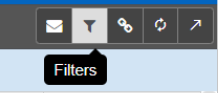
Next, click the Filter button in the top-right corner of the screen to filter the reports.
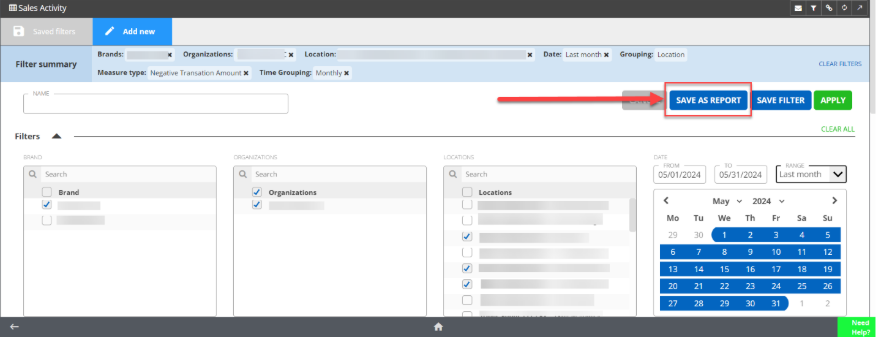
Click the Add new tab to create a custom filter.

Fill out your desired criteria, then click Save As Report, name your new report, and click Save.

How to Access Your Custom Report
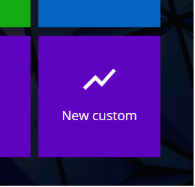
On the Home Screen, you can quickly access that report from the Reports tile. Customized reports are marked purple. To schedule this report to be emailed to you, please see our Auto-Delivery Guide.
For additional information or questions please contact DTiQ Support at support@dtiq.com or your Customer Experience Team at csr@dtiq.com.