
360iQ gives you seamless access to video for all your locations in one place, combined with industry-leading video features that go beyond simple surveillance—including System Health Monitoring.
Content
In this guide, you will learn about:
- How to Access Video at Your Location
- The Organizational Health Dashboard
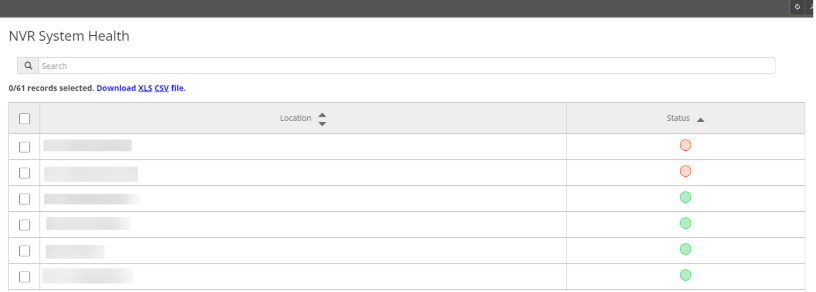
- NVR System Health
- Camera Health
How to Access Video at Your Location
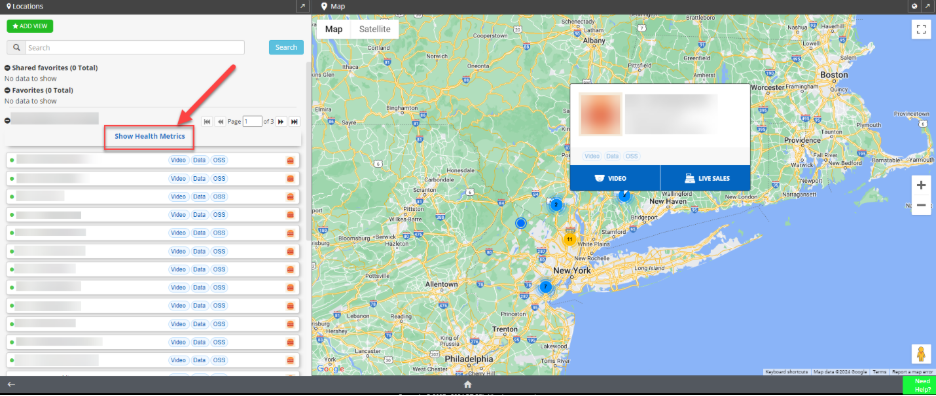
To access video at your location, select the Video tile from the Home Screen or Quick bar icon. Then, click on the location name you would like to view. As you move your cursor between locations, the interactive map on the right-side will show you where the store is located.
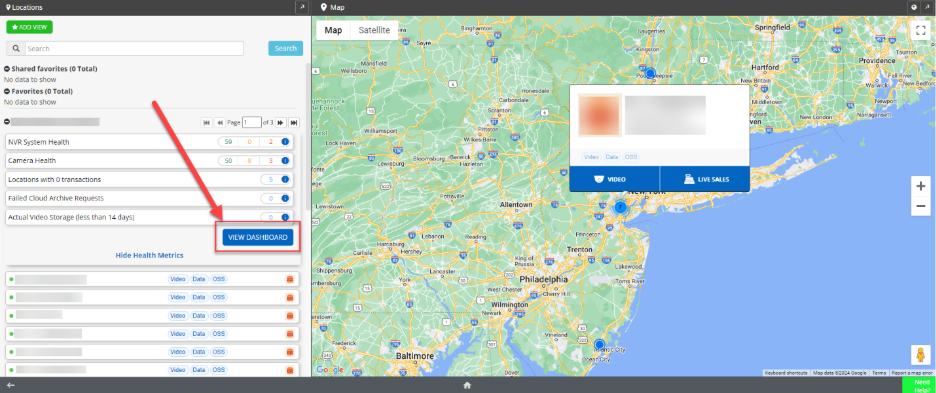
You can Search by location name using the search box in the upper left-hand corner of the screen. Administrator Role users can review Health Metrics and go directly to the Organization Health Dashboard by clicking Show Health Metrics, then VIEW DASHBOARD.
The Organizational Health Dashboard
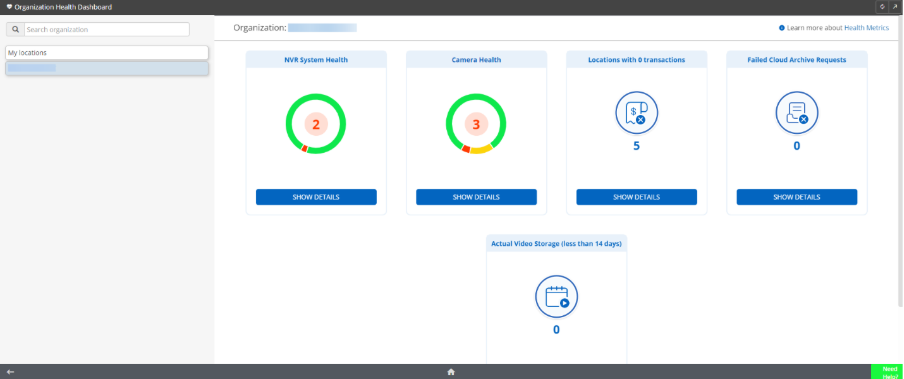
The Organization Health Dashboard includes metrics such as NVR System Health, Camera Health, Locations with 0 transactions, and Failed Cloud Archive Requests.
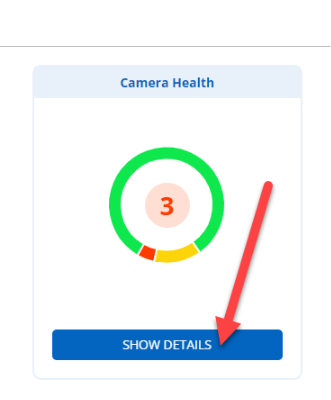
You can click the SHOW DETAILS button to see the status for each location.
NVR System Health
To view NVR System Health, click the SHOW DETAILS button under the NVR System Health header.
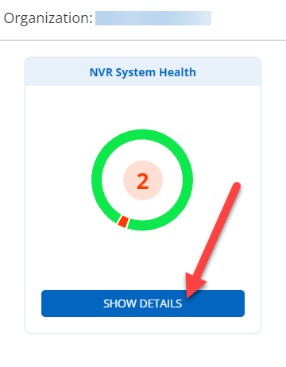
The statuses break down as follows:
- Red: Network Video Recorder (NVR) failed health checks for longer than 60 minutes.
- Yellow: Network Video Recorder (NVR) failed health checks during the last hour.
- Green: Network Video Recorder (NVR) passed health checks within the last 15 minutes.
Camera Health
To view Camera Health, click the SHOW DETAILS button under the Camera Health header.
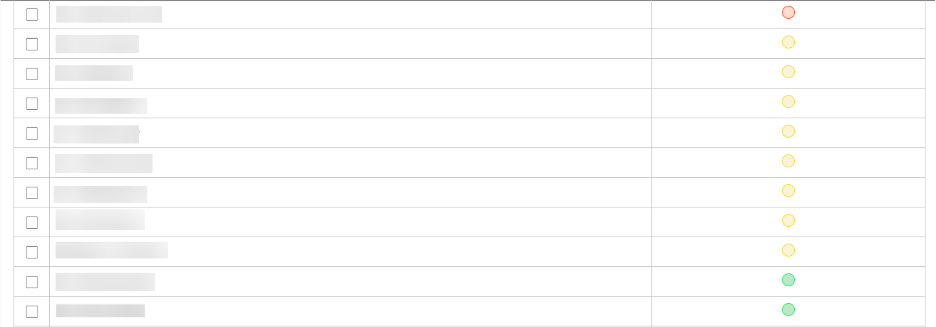
The statuses break down as follows:
- Red: All camera streams are not displaying video.
- Yellow: Some camera streams are not displaying video.
- Green: All camera streams are displaying video.
For additional information or questions please contact DTiQ Support at support@dtiq.com or your Customer Experience Team at csr@dtiq.com.