
Note: DTiQ’s Discount Report feature requires an active POS Data Subscription.
Content
In this guide, we will share:
How to Access the Discount Report
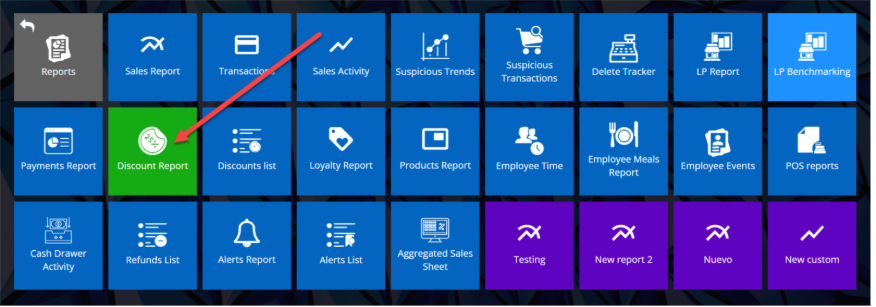
To access the Discount Report, click the Reports tile, then click Discount Report.

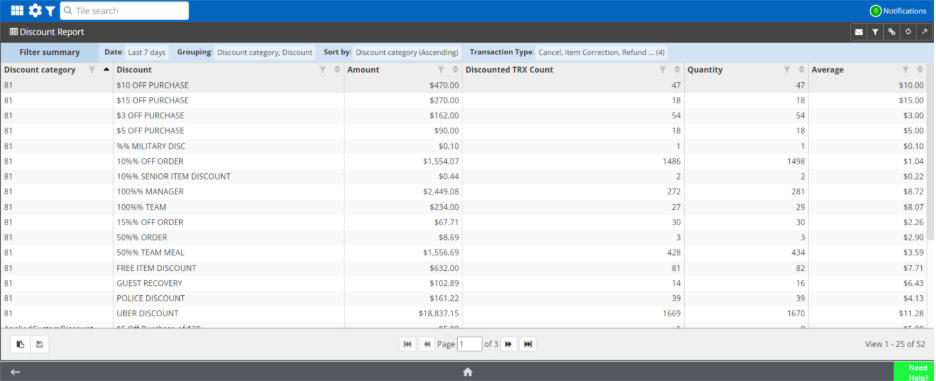
In the Discount Report overview, you will find a list of all your organization’s discounts. These discounts are arranged by Discount category, Discount, Amount, Discounted TRX Count, Quantity, and Average.
How to Navigate the Discount Report
Click on any row in the table to view a comprehensive breakdown of each discount, including Location, Date, Revenue, Register, Employee, Type, Number, Gross, Net, Tax, Discount, Cash, Credit, Third party, Check, Other, Deleted, Comment, Fraud Flag (checkbox), Fraud Probability, Flagged, and Verified by.

By clicking on the discount name, you will see a stack ranking of the number and amount, in dollars, of that discount processed by location. Additionally, you can click on location name to see a stack ranking of employees who have processed said discount from most processed to least.
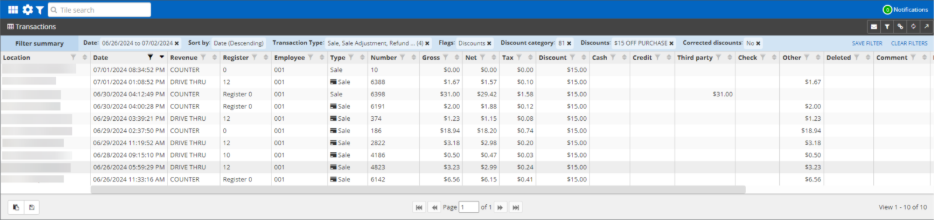
Then, by clicking on the location name, you will see that discount at that location by employee.

By clicking on that number, you will see all discounted transactions of that type at that location conducted by that employee.

For additional information or questions please contact DTiQ Support at support@dtiq.com or your Customer Experience Team at csr@dtiq.com.