
360iQ not only allows you to view video from your locations in real time, but also lets you share a link to that video with relevant members of your organization.
Note: You can also share video via the Cloud Archive and send .mp4 clips to any email address. As detailed below, the Save link feature is only a bookmark, and it requires logging into a 360iQ user account to view.
To share video from 360iQ, proceed as follows:
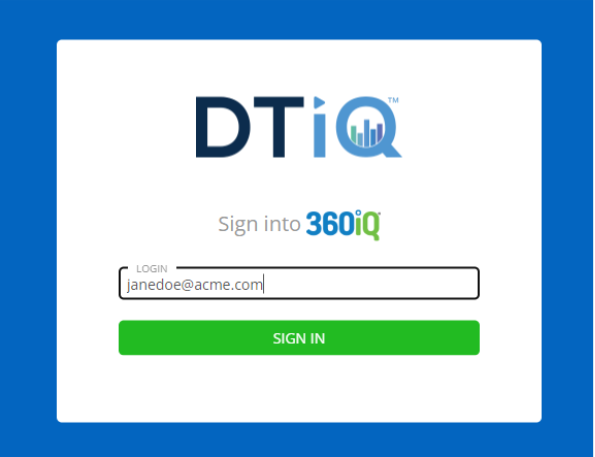
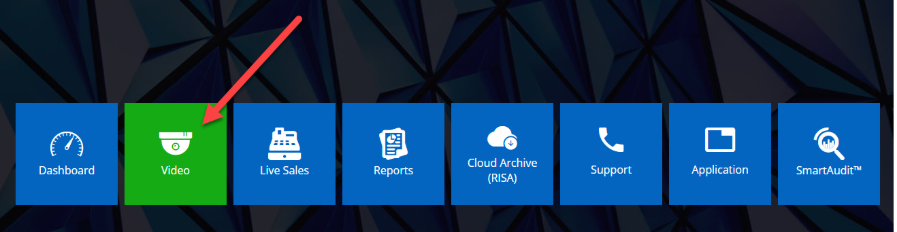
- Navigate to the Video tile via the Home screen or Quick bar.
- Select your Organization.
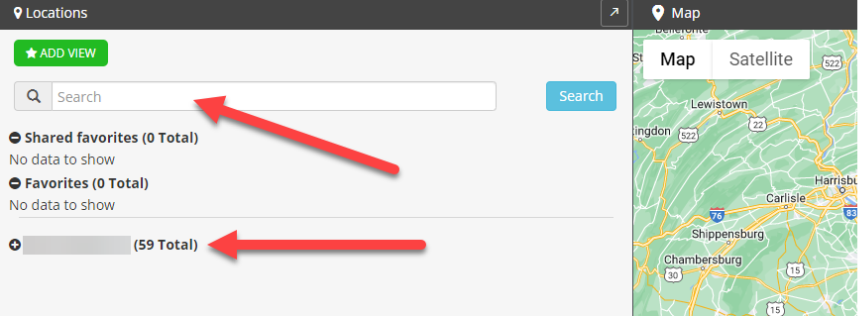
- After clicking the Organization, choose your preferred Location from the list of options.

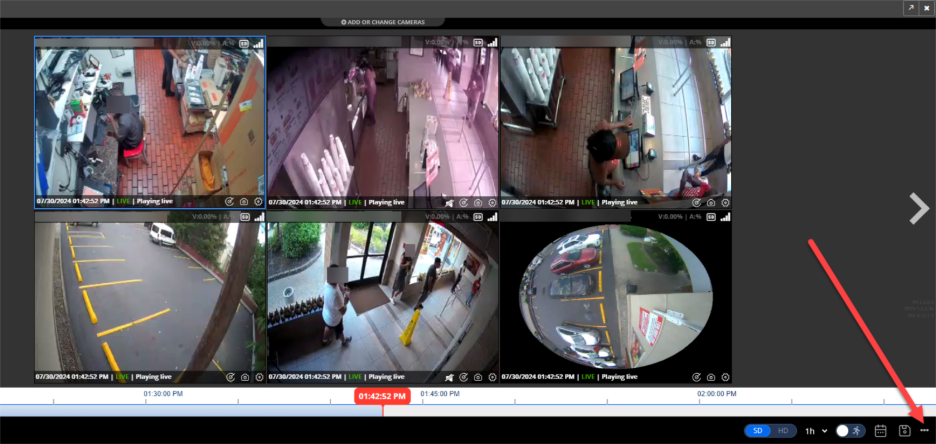
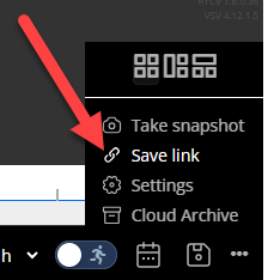
- Here, you can view Video footage of your Location. By default, the first six cameras will be displayed. To create a shareable video link, click the three dots (more) icon in the bottom right corner of the screen. Then, click Save link.
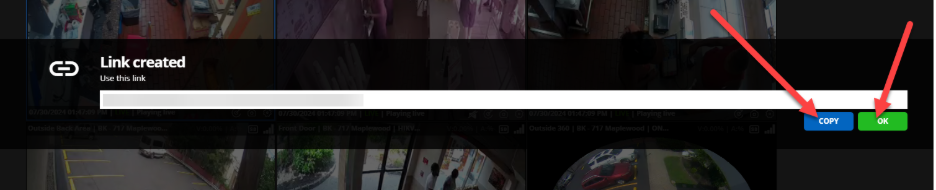
- A window will pop up. To copy and share the link, click Copy. You can then share the link with anyone via email, social media, or text message. Once you are finished, click OK to close the window.
- Note: To view shared video, you must be logged in.
For additional information or questions please contact DTiQ Support at support@dtiq.com or your Customer Experience Team at csr@dtiq.com.