
Using 360iQ, you can view, manage, and share video from all your locations, including live and historical video footage.
Content
In this guide, you will learn about the following topics:
How to Access Video
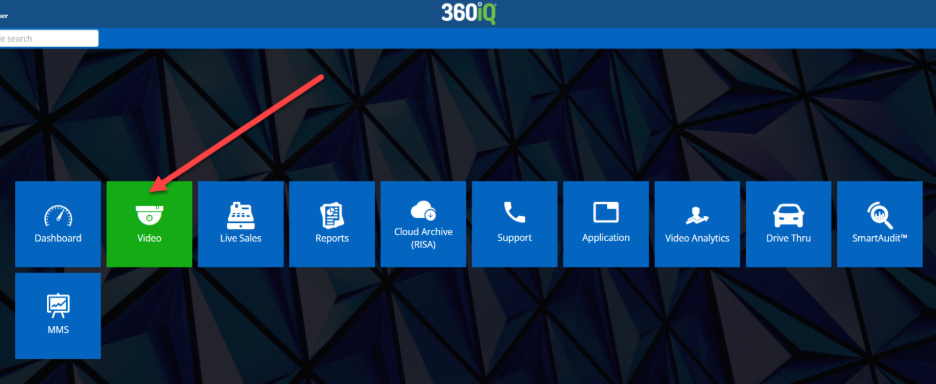
To access live and historical video, navigate to the Video tile via the Home screen or Quick bar.

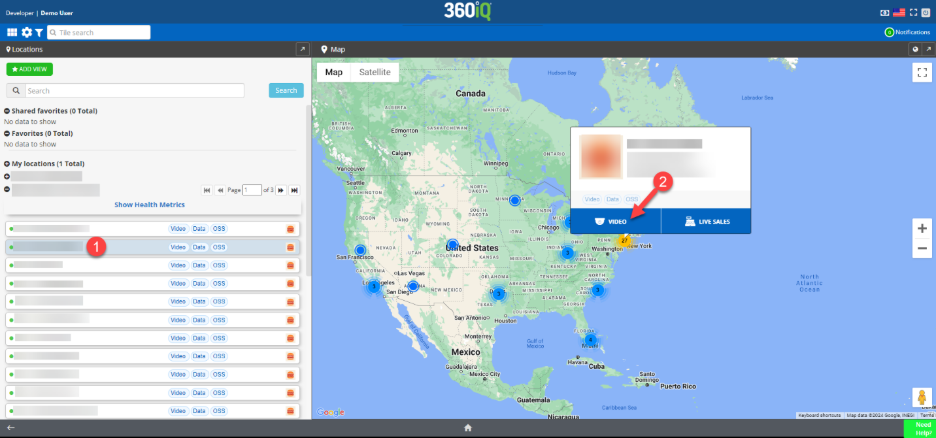
Choose your desired location from the list of Locations for your organization.
Then, click the Video tab to access the camera feed for that location.
Live Video
When you select a location from the Video tile, you will automatically be connected to live video. Live status of video is indicated by the green “LIVE” label in the camera view.
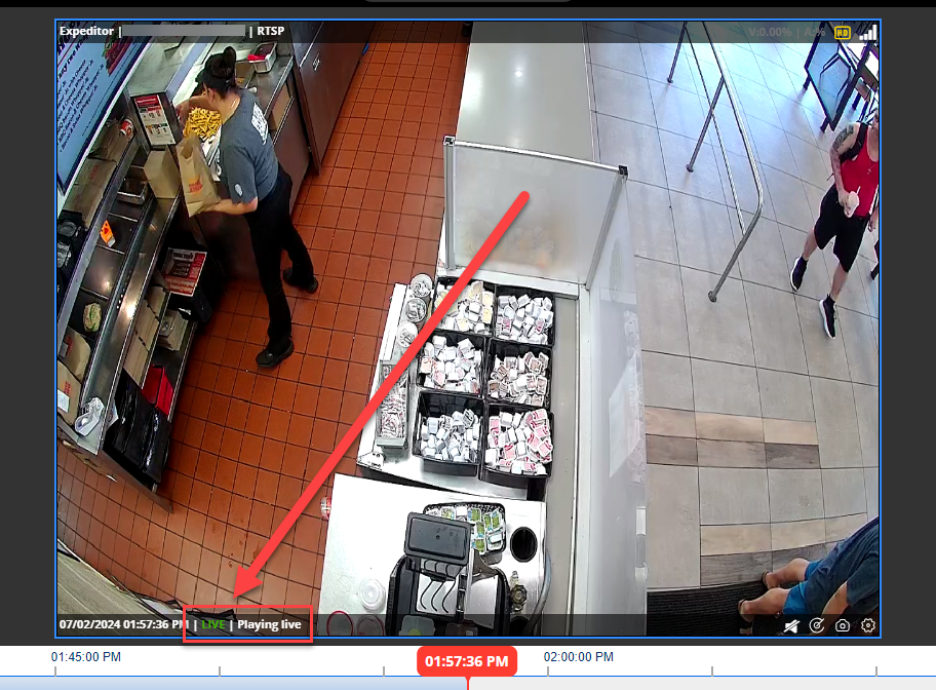
Note: If you are viewing historical video and would like to return to live mode, click the LIVE button located on the bottom left-hand corner of your screen.
Historical Video
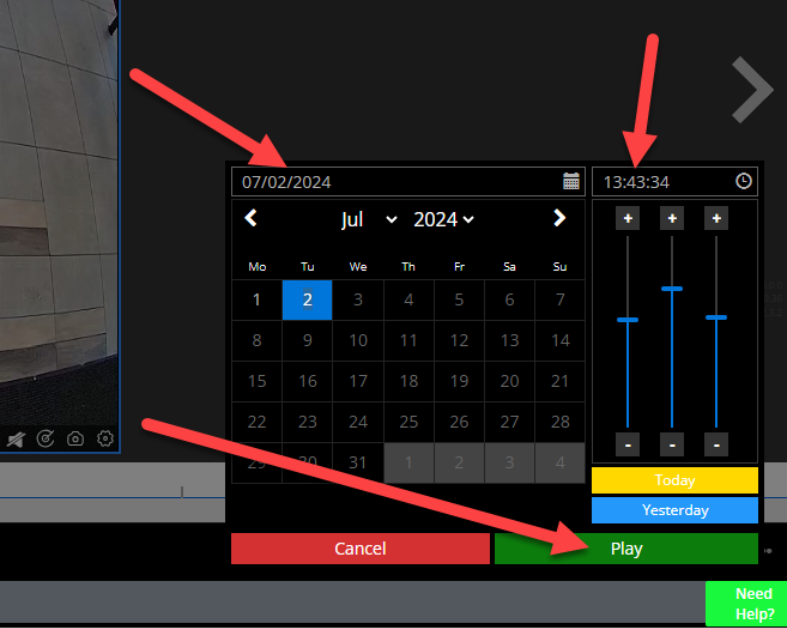
To view historical video, click on the calendar icon located on the bottom right hand of the video navigation bar.
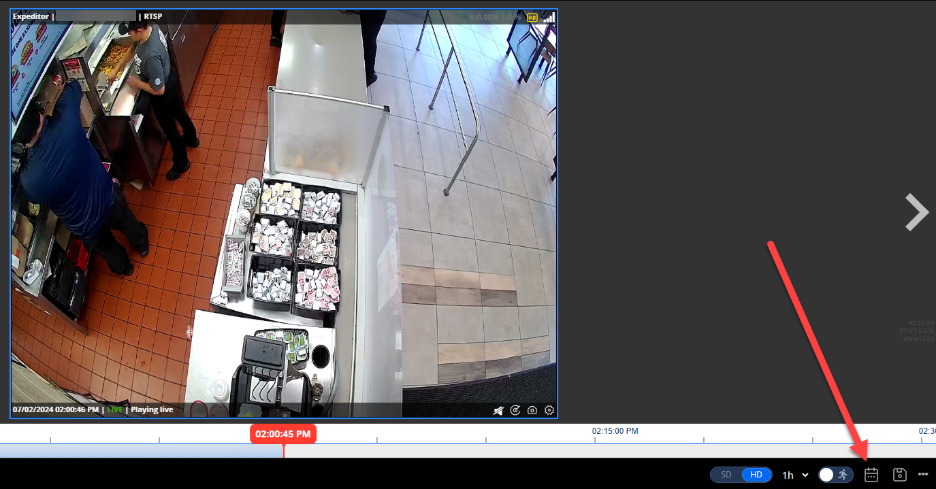
Next, select the desired date and time, which is displayed in military time (e.g. 00:00 – 11:59). Then, click Play to view the footage from that day.
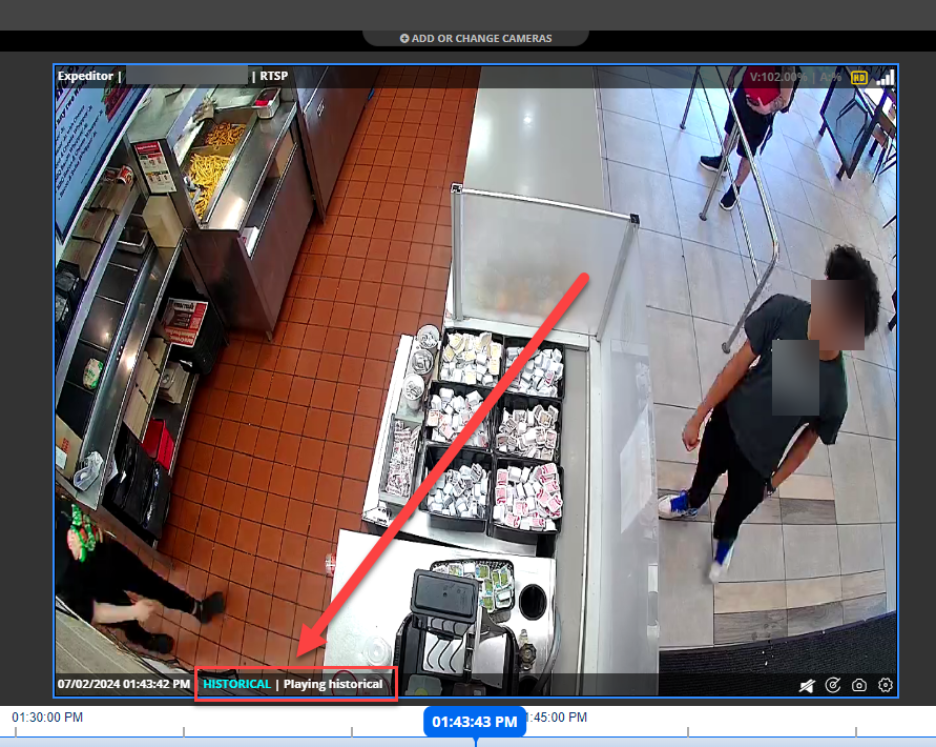
When viewing recorded video, you will see a teal-colored “HISTORICAL” label on the camera views.
For additional information or questions please contact DTiQ Support at support@dtiq.com or your Customer Success Manager at csr@dtiq.com.